

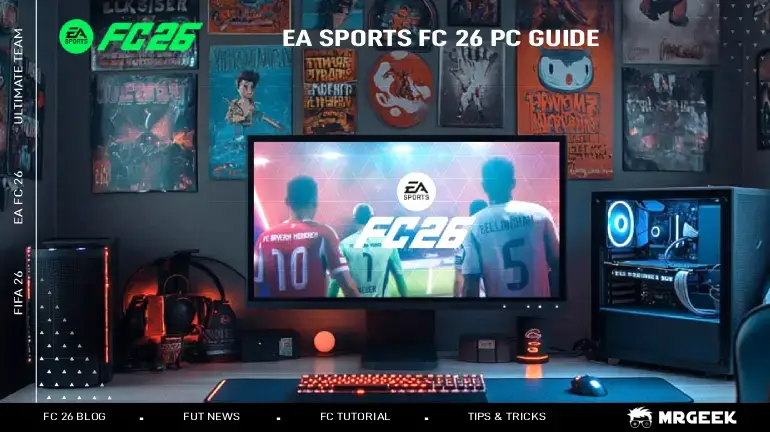
EA SPORTS FC 26 delivers a far better PC experience than its predecessor. After the rocky release of FC 25—plagued by inconsistent performance, buggy visuals, and even a troublesome .ini file that some players had to delete before every launch—EA put extra focus on the PC version this time around.
Thanks to community feedback, the team made significant upgrades to performance, settings, and usability, bringing the PC edition fully in line with its console counterparts. Below is a complete breakdown of the confirmed system requirements and every new setting worth knowing before you dive in.
Along with these upgrades, Ultimate Team fans will want to prepare their squads. Having enough FIFA Coins is essential to stay competitive in FUT, so it's worth planning your budget ahead of any upcoming promos.
Controller Support Enhancements
PC gamers who prefer controllers get more immersive options in FC 26:
- DualShock®4 Support: Full vibration when connected via USB.
- DualSense™ Controller Support: Includes haptics and adaptive triggers over USB for that next-level feel (Bluetooth supports basic vibration).
Expanded Display Settings
Customization is a major theme in FC 26, giving players more control to tailor performance and visuals to their setup.
- Active Monitor Selection – Pick your primary monitor directly in-game.
- Aspect Ratio Filter – Quickly find supported resolutions.
- More FPS Limits – Options now extend up to 144, 165, and 240 FPS.
- Advanced VSync – Sync your framerate to halves, thirds, or quarters of your monitor's refresh rate.
- Render Scale – Adjust resolution scaling, especially helpful in borderless mode.
- Dynamic Resolution FPS Target – Automatically adjusts resolution to keep performance smooth.
Improved Graphics Settings Usability
Finding the perfect balance between visuals and performance is easier than in previous titles:
- Clear Descriptions – Every graphics option explains its impact on CPU, GPU, and VRAM.
- Presets – Choose from Low, Medium, High, Ultra, or Auto.
Display Settings Guide
Key options are organized into clear groups:
Screen Setup
- Active Monitor: Pick which monitor the game runs on.
- Display Mode: Choose between Borderless (fills screen, no resizing), Fullscreen (uses entire screen), or Windowed (resizable window).
- Aspect Ratio: Filter resolutions by your screen's shape (e.g., 16:9, 21:9).
- Screen Resolution: Higher resolution means sharper visuals, but lower performance.
Frame Rate & Refresh
- Refresh Rate: How often your monitor refreshes (Hz).
- Frame Rate Limit: Set a cap on FPS.
- VSync: Sync FPS with monitor to avoid screen tearing. Can also run at fractions of refresh rate (e.g., 240Hz monitor at 120, 80, or 60 FPS).
- Cutscene Performance: Choose lower or full FPS during menus and replays.
Scaling Tools
- Render Scale: Adjust resolution scale for sharper visuals or better performance.
- Dynamic Resolution Scaling (DRS): Automatically lowers resolution if FPS drops.
- Dynamic Resolution FPS Target: Sets your ideal FPS, and the game adjusts resolution in real time to maintain it.
(1).jpg)
Graphics Settings Guide
Visuals can be fine-tuned with much greater clarity than in past releases.
- Graphics Presets: Auto, Low, Medium, High, Ultra.
- Fidelity Settings: Adjust rendering quality, hair detail, cloth physics, and ambient occlusion.
- Stadium Settings: Control pitch detail, grass quality, and crowd animations.
- Visual Extras: Toggle effects like motion blur.
Note: Graphics changes require a restart to apply.
PC Requirements
Here's what you'll need to run FC 26 smoothly on PC:
Minimum (720p, Low, 60 FPS)
- OS: Windows 10/11 (64-bit)
- CPU: Intel i5-6600K / AMD Ryzen 5 1600
- RAM: 8 GB
- GPU: NVIDIA GTX 1050 Ti / AMD RX 570 (4 GB VRAM)
- Storage: 100 GB
- DirectX 12
Recommended (1080p, Medium, 60 FPS)
- OS: Windows 10/11 (64-bit)
- CPU: Intel i7-6700 / AMD Ryzen 7 2700X
- RAM: 12 GB
- GPU: NVIDIA GTX 1660 / AMD RX 5600 XT (6 GB VRAM)
- Storage: 100 GB
- DirectX 12
.jpg)
Troubleshooting Common PC Performance Issues
If FC 26 isn't running as smoothly as expected on your setup, a few quick checks can usually resolve most performance issues:
- Update your GPU drivers. Outdated graphics drivers are one of the most common causes of stuttering or crashes in newly released titles—always confirm you're on the latest version from NVIDIA or AMD before troubleshooting further.
- Try lowering Render Scale before dropping your preset. If you're just short of your target FPS, reducing Render Scale slightly often preserves more visual quality than dropping an entire graphics preset tier.
- Enable Dynamic Resolution Scaling for consistency. If your framerate fluctuates in crowded stadium scenes, DRS can smooth things out automatically without you needing to manually adjust settings mid-match.
- Check your storage drive. With a 100 GB install size, running the game from an HDD instead of an SSD can cause longer load times and occasional texture pop-in, even on otherwise capable hardware.
FAQ: FC 26 PC Settings
Do I need to restart the game after every settings change?
Only graphics changes require a restart to apply. Display settings like resolution, VSync, and frame rate limits typically apply immediately without needing to relaunch.
What's the difference between VSync and Dynamic Resolution Scaling?
VSync synchronizes your framerate to your monitor's refresh rate to prevent screen tearing, while Dynamic Resolution Scaling automatically adjusts the rendered resolution in real time to help maintain a target FPS—they solve different problems and can often be used together.
Can I run FC 26 on a monitor with a non-standard aspect ratio?
Yes. The Aspect Ratio Filter lets you narrow the resolution list to match ultrawide (21:9) or other non-16:9 displays, making it easier to find a properly supported resolution for your specific monitor.
Conclusion
With these upgrades, EA SPORTS FC 26 on PC isn't just a port — it's a full-fledged version built to perform. From controller haptics to higher framerates and smarter graphics settings, PC players get a smoother, sharper, and more customizable experience than any previous entry in the series.