

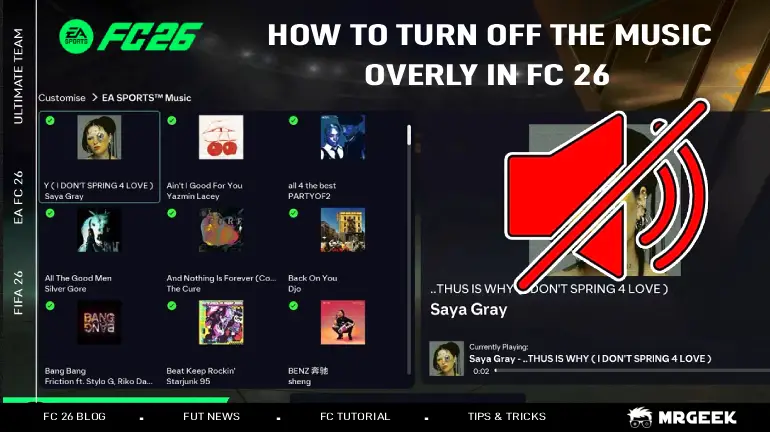
EA FC 26 introduces several smart presentation choices, but the on-screen music overlay can be a major distraction. This small banner pulls your eye away from the pitch exactly when you're lining up a crucial counterattack. If you want a cleaner, more focused match experience, here is the quick fix to remove it.
If you're looking to get more out of EA FC 26, there are also ways to improve your overall experience, including exploring options like buying Fc 26 Coins to speed up progression.
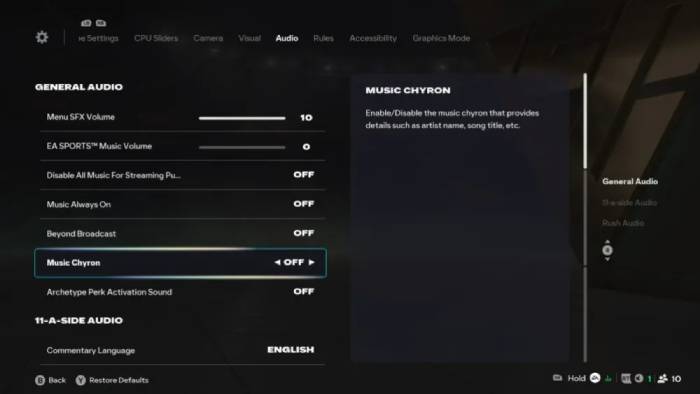
How to Disable the Music Overlay (Music Chyron) in EA FC 26
Turning off the music overlay is refreshingly simple and takes less than a minute once you know where to look.
- From the main menu, press Left on the Left Stick to open the sidebar.
- Select the Gear icon > Settings > Game Settings.
- Tab over to the Audio section.
- Scroll down to Music Chyron and toggle it OFF.
By disabling this, song titles will no longer pop up during your matches or menu navigation.
Additional EA FC 26 Audio Settings to Adjust
If you want an even more distraction-free experience, there are a couple of other audio options worth considering:
Music Always On
This setting determines whether licensed music continues to play during matches. Turning it OFF ensures that no soundtrack music plays once gameplay begins, leaving only crowd noise, commentary, and on-pitch sounds.
Disable All Music for Streaming Purposes
This option completely disables licensed music throughout the game. It's especially useful for streamers, content creators, or anyone who wants to avoid copyright issues while recording gameplay.
EA FC 26 offers plenty of customization under the hood, and with a few quick tweaks, you can strip away unnecessary distractions and keep the focus where it belongs — on the match itself.
You can read about the FC 26 soundtrack playlist here.
FAQs: EA FC 26 Music & Soundtrack Settings
How do I skip songs in EA FC 26?
While in the menus, press L3 + R3 (both analog sticks) to skip to a random track from the soundtrack.
Can I choose specific songs in the EA FC 26 soundtrack?
Yes. Go to Settings > EA Sports Music, where you can browse the full track list and play or pause individual songs.
How do I remove songs from the EA FC 26 playlist?
In the EA Sports Music menu, select a song and press A (Xbox) or X (PlayStation) to disable it so it won't play.
Can I turn off all menu music at once in EA FC 26?
Yes. Press X (Xbox) or Square (PlayStation) in the soundtrack menu to toggle all songs on or off.
Conclusion
Customizing your audio settings is the first step to a better gaming experience. By removing the Music Chyron, you keep your eyes on the ball and your focus on the win.