


Os códigos de backup da EA são uma forma alternativa de verificar sua conta EA quando seu método habitual de autenticação de dois fatores (2FA) não estiver disponível. Este guia mostra exatamente onde encontrá-los, como salvá-los e o que fazer se eles não aparecerem.
Facilite sua jornada no Ultimate Team com FC Coins confiáveis da MrGeek. Compre FC Coins e use-as para jogadores, SBCs e melhorias no seu time.
Resposta Rápida: Como Obter os Códigos de Backup da EA
- Faça login na sua conta EA.
- Abra Segurança e Privacidade.
- Vá para Autenticação de Dois Fatores.
- Certifique-se de que o 2FA está ativado.
- Selecione a opção para visualizar os códigos de backup.
- Salve os códigos em um local seguro.
Guia Passo a Passo para Obter os Códigos de Backup da EA
Passo 1: Faça Login na Sua Conta EA
Acesse myaccount.ea.com/cp-ui/security/index e faça login na sua conta EA.
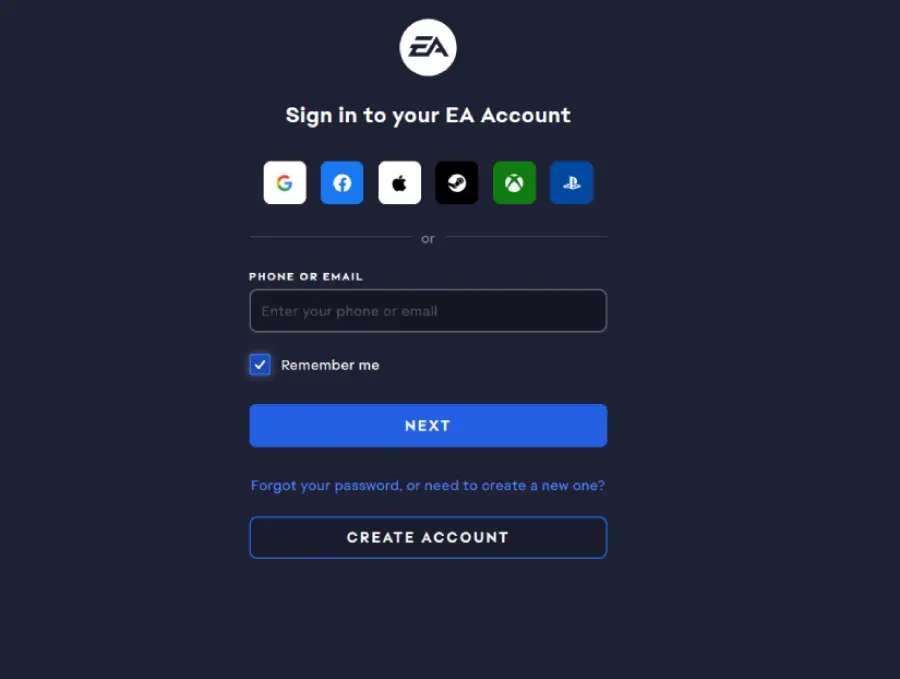
Passo 2: Abra as Configurações de Segurança e Privacidade
No menu da conta, vá para Segurança e Privacidade.

Passo 3: Encontre a Autenticação de Dois Fatores
Os códigos de backup só estão disponíveis após a configuração do 2FA. Se o 2FA não estiver ativado, você não verá a opção de códigos de backup.
Passo 4: Escolha Seu Método de Verificação
Escolha seu método 2FA preferido — Aplicativo Autenticador, SMS ou E-mail — e conclua o processo de verificação. Se precisar de ajuda para ativar o 2FA primeiro, consulte nosso guia para ativar o 2FA.
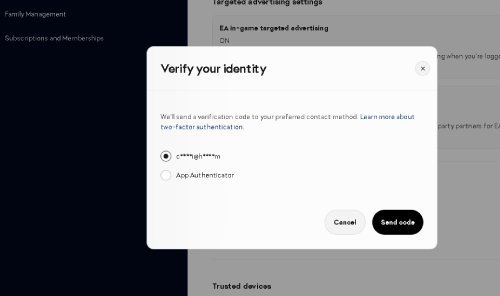
Passo 5: Abra Seus Códigos de Backup
Clique em "Visualizar códigos de backup".
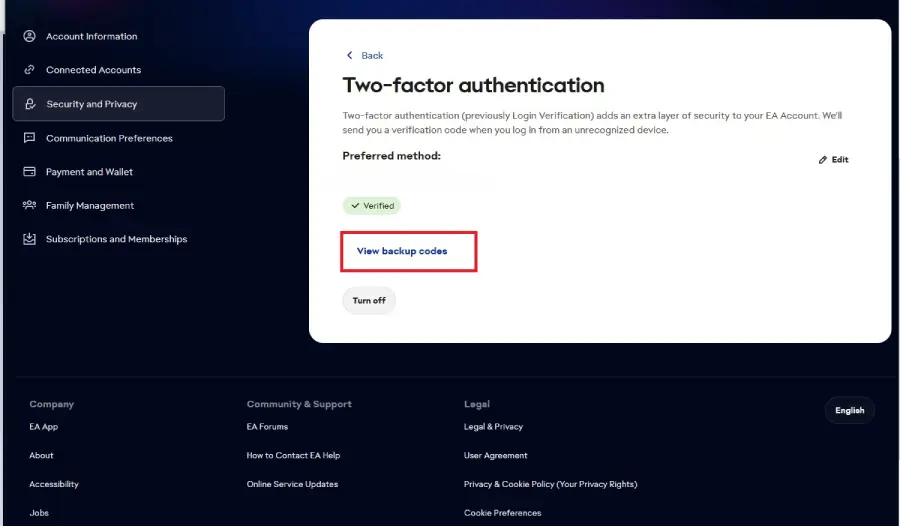
Passo 6: Salve Seus Códigos de Backup com Segurança
A EA fornecerá seis códigos de backup. Anote-os ou salve-os em um local seguro e não os compartilhe com ninguém.
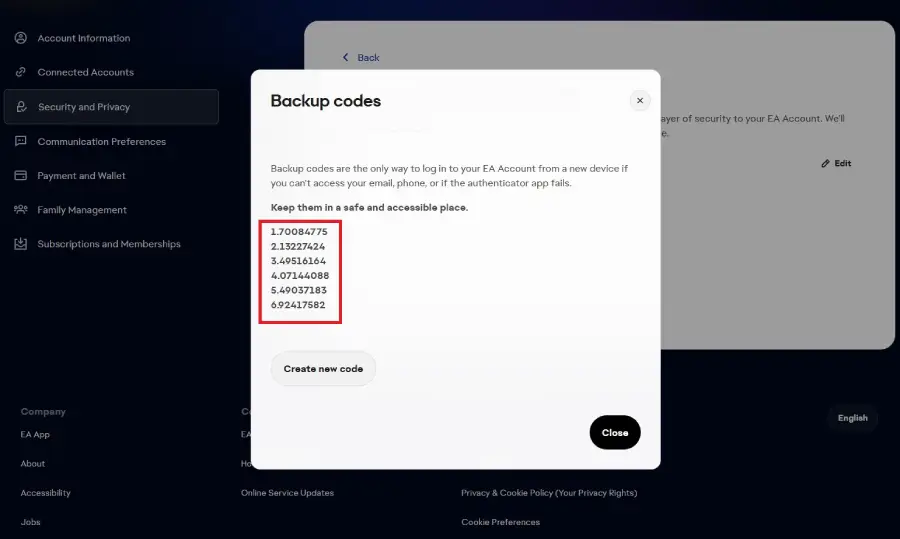
Passo 7: Crie Novos Códigos Quando Necessário
Se você usou todos os seus códigos ou quiser um novo conjunto, volte à mesma página a qualquer momento e clique em "Criar novos códigos".
Referência Rápida
| Passo | Onde Ir | O Que Fazer |
|---|---|---|
| 1 | Conta EA | Fazer login |
| 2 | Segurança e Privacidade | Abrir configurações de segurança |
| 3 | Autenticação de Dois Fatores | Verificar se o 2FA está ativado |
| 4 | Códigos de Backup | Selecionar Visualizar códigos de backup |
| 5 | Lista de Códigos de Backup | Salvar os códigos com segurança |
| 6 | Configurações de Segurança | Criar novos códigos quando necessário |
O Que São os Códigos de Backup da Conta EA?
Se você perder seu telefone, seu aplicativo autenticador falhar ou perder o acesso ao seu e-mail, você pode ficar bloqueado fora da sua conta EA. Os códigos de backup resolvem isso — são códigos de uso único que funcionam como um método alternativo de login quando seu 2FA habitual não está disponível, permitindo que você faça login com segurança, mesmo em um novo dispositivo.
E Se os Códigos de Backup da EA Não Aparecerem?
- Certifique-se de que a Autenticação de Dois Fatores (anteriormente chamada de Verificação de Login) esteja ativada.
- Atualize a página e verifique novamente.
- Se o problema persistir, desative e reative o 2FA, depois volte às configurações de Segurança e Privacidade.
| Problema | O Que Verificar |
|---|---|
| Os códigos de backup não estão visíveis | Certifique-se de que o 2FA está ativado |
| O 2FA está ativado, mas os códigos estão faltando | Atualize a página e verifique Segurança e Privacidade novamente |
| Os códigos antigos não funcionam mais | Crie um novo conjunto de códigos de backup |
| Você não consegue acessar a conta correta | Confirme que você está logado na conta EA correta |
Pontos-Chave para Lembrar
- Os códigos de backup estão vinculados às configurações de 2FA da sua conta EA.
- O 2FA deve estar ativado para acessá-los.
- Cada código pode ser usado apenas uma vez — renove sua lista quando acabar.
- Sempre mantenha seus códigos de backup em um local seguro e privado.
- Certifique-se de estar usando a conta EA correta.
Perguntas Frequentes (FAQ)
O que são códigos de backup da EA?
Códigos de uso único que permitem que você faça login na sua conta EA como alternativa ao seu método 2FA habitual.
Como obtenho códigos de backup para minha conta EA?
Faça login na sua conta EA, abra Segurança e Privacidade, vá para Autenticação de Dois Fatores e selecione Visualizar códigos de backup assim que o 2FA estiver ativado.
Onde encontro meus códigos de backup da EA?
Em Conta EA → Segurança e Privacidade → Autenticação de Dois Fatores → Visualizar códigos de backup.
Por que não consigo ver meus códigos de backup da EA?
Isso geralmente significa que o 2FA ainda não foi ativado — ative-o primeiro e a opção de códigos de backup aparecerá.
Preciso do 2FA para obter códigos de backup da EA?
Sim, os códigos de backup são gerados como parte da sua configuração de 2FA e não aparecerão até que o 2FA esteja ativo.
Posso criar novos códigos de backup da EA?
Sim, volte à mesma página de Segurança e Privacidade a qualquer momento e selecione "Criar novos códigos" para gerar um novo conjunto.
Como devo armazenar meus códigos de backup da EA?
Anote-os ou salve-os em um local seguro e privado, e nunca os compartilhe com ninguém.
Posso usar um código de backup da EA mais de uma vez?
Não, cada código funciona apenas uma vez. Depois de usado, gere um novo conjunto se precisar de mais.