


Backup codes are designed as a last-resort safety net for your EA Account. If you lose your mobile phone, your authenticator app stops working, or you can't access the email address tied to your account for any reason, backup codes are the only way to sign into your EA Account from a new device. That's why it's essential to generate them ahead of time and store them somewhere safe.
What Are EA Account Backup Codes?
Backup codes are a set of single-use codes generated through your EA Account's security settings, specifically as part of Login Verification (EA's two-factor authentication system). While your primary verification method might be an authenticator app or a code sent to your email, backup codes exist for the exact moment those methods aren't available to you—a broken phone, a deleted authenticator app, or an email account you've lost access to.
Each backup code works only once. Once you use a code to sign in, it's automatically invalidated and can't be reused, which is why EA typically issues a full batch of codes at once rather than just one or two.
Why Backup Codes Matter for EA FC Ultimate Team Players
If you've invested time—and possibly coins—building out your Ultimate Team squad, losing access to your EA Account can be genuinely stressful. Your club, your coin balance, and any progress toward promos or SBCs are all tied to that account. Backup codes exist specifically to make sure a lost phone or an inaccessible inbox doesn't turn into a locked-out account with no way back in.
This becomes especially important around major Ultimate Team promos, when players are actively managing packs, market trades, and time-limited SBCs. Getting locked out during a high-value event isn't just inconvenient—it can mean missing content entirely. If you're planning to buy FC coins from the MrGeek store to strengthen your squad ahead of a promo, it's worth taking a few minutes beforehand to confirm your account recovery options are properly set up, so a login issue never gets in the way of using them.
How to Generate Your EA Account Backup Codes
Setting up backup codes only takes a few minutes:
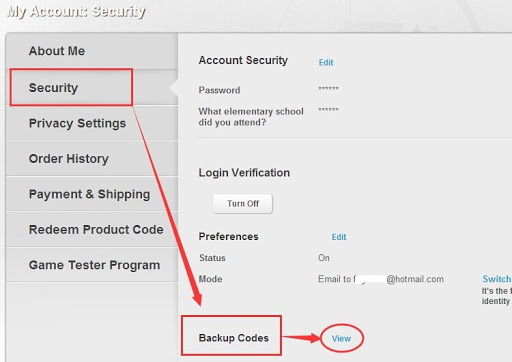
- Sign in to your EA Account at myaccount.ea.com
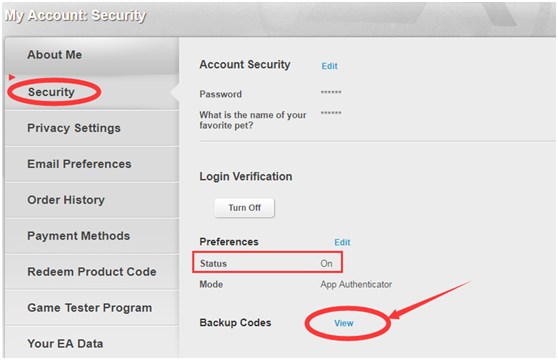
- Go to Security > Login Verification
- Make sure Login Verification (two-factor authentication) is turned on
- Select the option to generate or view backup codes
- Save or print the full list of codes and store them somewhere secure
EA usually provides a set of ten backup codes at a time. Once you've used most or all of them, it's a good idea to log back in and generate a fresh batch so you're never left without a working recovery option.
Where to Safely Store Your Backup Codes
Because backup codes can be used to access your account without your phone or email, they should be treated with the same level of care as a password. A few safe storage options:
- A password manager with secure note storage
- A printed copy kept in a safe, private location—not somewhere easily found by others
- An encrypted file on a device only you have access to
Avoid storing backup codes in plain text files on shared computers, in unencrypted cloud notes, or anywhere someone else could stumble across them. Since each code only works once, having a full, untouched set on hand gives you the most flexibility if you ever need them.
What to Do If You Lose Your Backup Codes
If you still have access to your EA Account, generating a new set of backup codes is straightforward—just return to the Login Verification section in your account settings and request a fresh batch, which will automatically replace the old ones.
If you've lost your backup codes and lost access to your authenticator app or verification email at the same time, you'll need to go through EA Help's account recovery process. This typically involves verifying your identity through other means, such as proof of purchase or previously used account details, so it's a good idea to keep some form of backup identification on hand in case this situation ever comes up.
Common Mistakes to Avoid
- Never generating codes in the first place: Many players only think about backup codes after they've already been locked out—setting them up in advance takes a few minutes and avoids the problem entirely.
- Storing codes somewhere insecure: A screenshot saved to a shared photo album or an unlocked note isn't a safe place to keep account recovery credentials.
- Forgetting to regenerate codes after using several: Since each code works only once, running low without generating a new batch can leave you without a working backup when you actually need one.
- Losing codes and recovery access at the same time: Keeping your backup codes in a completely different location from your phone (rather than, say, a note saved on the same device) protects you if that device is ever lost or damaged.
FAQ: EA Account Backup Codes
How many backup codes does EA provide?
EA typically issues ten backup codes at a time. Each code can only be used once, so it's worth generating a new batch once you've used most of them.
Do backup codes expire?
Backup codes don't expire on a set timer, but they become invalid individually once used, and generating a new set will replace and invalidate any previously issued codes.
Can I use a backup code instead of my password?
No. Backup codes are used as your second verification step alongside your password, not as a replacement for it. You'll still need your EA Account password to sign in.
What happens if I run out of backup codes?
If you still have account access, simply generate a new set through your Login Verification settings. If you don't have access and have exhausted your codes, you'll need to go through EA Help's account recovery process instead.
Conclusion
Backup codes are a small setup step that can save you a major headache down the line. Taking a few minutes to generate and securely store your codes now means you'll never be locked out of your EA Account—and your Ultimate Team progress—just because your phone or email happened to be unavailable at the wrong moment.
.webp)