

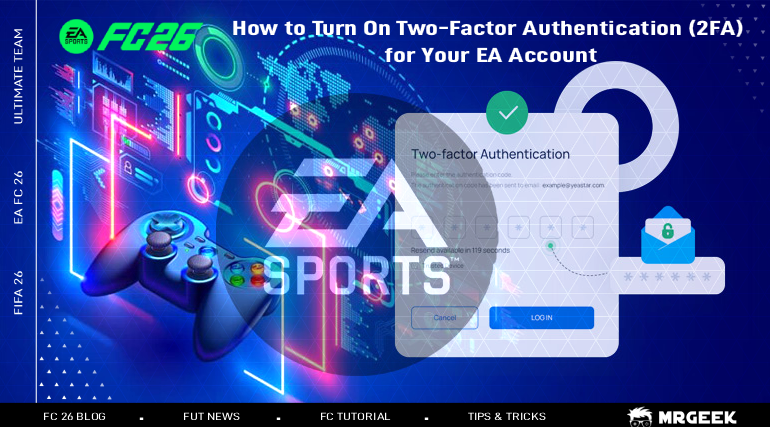
Two-Factor Authentication (2FA) adds an extra layer of protection to your EA Account, requiring a verification code in addition to your password. This guide walks through exactly how to turn it on and what to do once it's enabled.
More FC Coins means more options for building and upgrading your Ultimate Team. Get FC Coins from MrGeek and put them toward your next squad upgrade.
Quick Answer: How to Enable 2FA on Your EA Account
- Sign in to your EA Account.
- Open Security & Privacy.
- Find Two-Factor Authentication.
- Select Turn On.
- Choose your verification method.
- Enter the verification code.
- Save your backup codes.
What Is Two-Factor Authentication?
Two-Factor Authentication (2FA), also called Login Verification, is an extra layer of protection for your EA Account. After entering your password, EA asks for a verification code sent to your phone, email, or authenticator app — so even if someone has your password, they can't get in without that second step.
Step-by-Step Guide to Enable 2FA
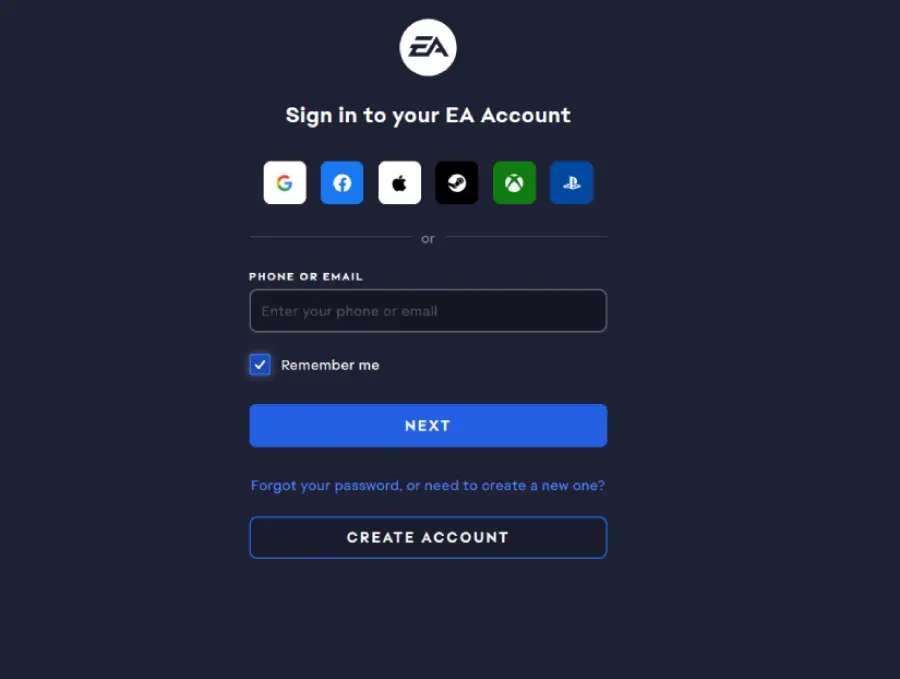
Step 1: Sign In to Your EA Account
Log into your EA Account through myaccount.ea.com/cp-ui/security/index.
Step 2: Open Security & Privacy
Open the Security & Privacy tab in your account settings.

Step 3: Find Two-Factor Authentication
Look for Two-Factor Authentication (previously called Login Verification) and click "Turn On."
Step 4: Choose Your Verification Method
Pick from the available options:
- Authenticator App (Google Authenticator, Authy, etc.)
- SMS (text message)
| Method | How It Works |
|---|---|
| Authenticator App | Generates verification codes through an authenticator app |
| SMS | Sends a verification code by text message |
| Sends a verification code to your email |
Step 5: Verify the Setup
EA sends a code to your selected method. Enter that code to confirm setup.
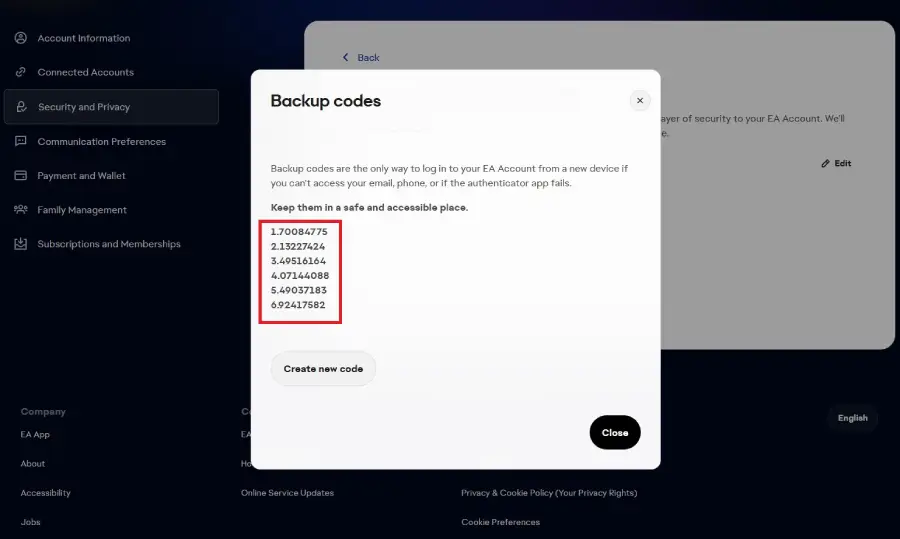
Step 6: Save Your Backup Codes
Once 2FA is enabled, EA generates a set of backup codes. Store them securely — they let you log in if your usual verification method becomes unavailable.
Quick Reference
| Step | EA Account Section | What to Do |
|---|---|---|
| 1 | EA Account | Sign in |
| 2 | Security & Privacy | Open your security settings |
| 3 | Two-Factor Authentication | Select Turn On |
| 4 | Verification Method | Choose Authenticator App, SMS, or Email |
| 5 | Verification | Enter the code you receive |
| 6 | Backup Codes | Save the generated codes securely |
Why Enable 2FA?
- Helps protect your EA Account from unauthorized access.
- Adds an extra verification step during login.
- Provides backup codes for situations where your normal verification method is unavailable.
- Helps protect account-related information and services.
Can't Turn On 2FA?
- Make sure you're signed into the correct EA Account.
- Open Security & Privacy again.
- Check that Two-Factor Authentication is available on your account.
- Confirm the selected verification method can actually receive codes.
- Try the setup again if the verification code fails.
- Use EA Help if you can't access your account settings.
Frequently Asked Questions
What is 2FA on an EA Account?
An extra security step that requires a verification code in addition to your password when logging in.
How do I enable 2FA on my EA Account?
Sign in, open Security & Privacy, find Two-Factor Authentication, select Turn On, choose a verification method, and confirm with the code EA sends.
Which 2FA methods does EA support?
Authenticator App, SMS, and Email.
Is EA 2FA the same as Login Verification?
Yes, Two-Factor Authentication was previously called Login Verification in EA's account settings.
Where do I find EA Account security settings?
Under Security & Privacy after signing in at myaccount.ea.com.
What happens after I enable 2FA?
You'll be asked for a verification code at login, and EA will generate a set of backup codes for you to store securely.
Where can I find my EA backup codes?
They're generated automatically once you complete 2FA setup, and can be viewed again anytime from the same Security & Privacy section.
Can I change my EA 2FA verification method?
Yes, return to the Two-Factor Authentication section in Security & Privacy to update your preferred method.